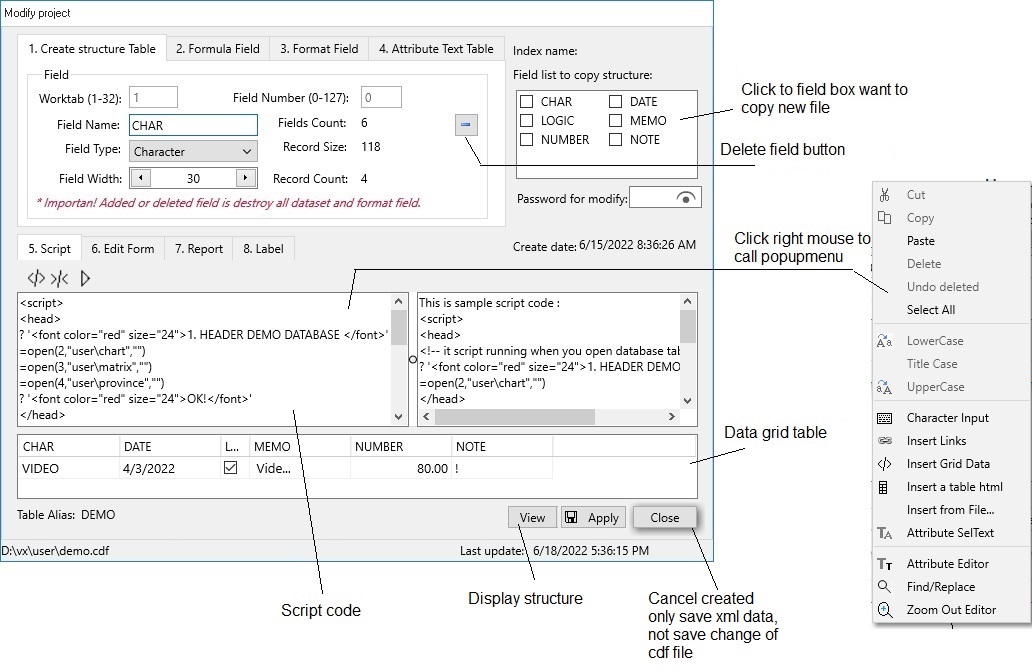
VX+ support 8 step to design a project:
1. Create a project.
In this tab, you can create new Table or modify created Table:
To Create new project you click menu [File/New Project].
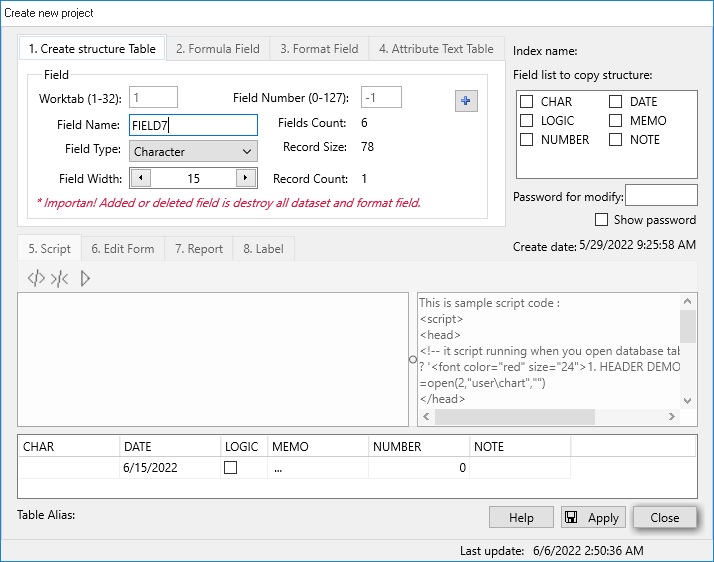
- Field Name input box: uppercase character, alpha charater or number. Max length
- Field Type: VX+ suport 5 type field:
- + Character: Character
+ Number : Number
+ Date : Date
+ Logic : Logic
+ Memo : Memo
- Field Width input box:
- + Character: C width 1-254 character.
+ Number : automatic width is 8 byte ,
+ Date : automatic width is 8 byte
+ Logic : automatic width is 1 byte
+ Memo : automatic width is 10 byte, it a pointer. It size max 1-6982 character.
- To create new field, you click button Add. Note, It change will delete all format and data of table.
- To delete current field, you click button Minus. Note, It change will delete all format and data of table.
After Created Structure Table you need Click button [Apply] and save it to filename on disk.
* Note, In Create Project, you only can Created Structure Table.
To do next step from 8.1.2 to 8.1.8, first you open data table, and then choose Modify Project.
2. Modify project.
To Modify project, first you need open data table and then click menu [File/Modify Project].
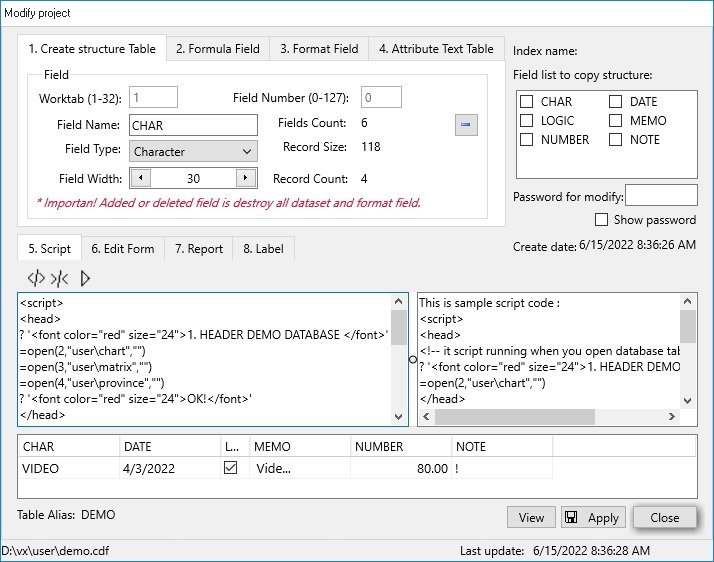
VX+ support 7 step to design a project:
After modify, you click button [Apply] to save to disk.
You click button [Close] to only save xml data file and don't save format structure of cdf file (because, before many report, label designed).
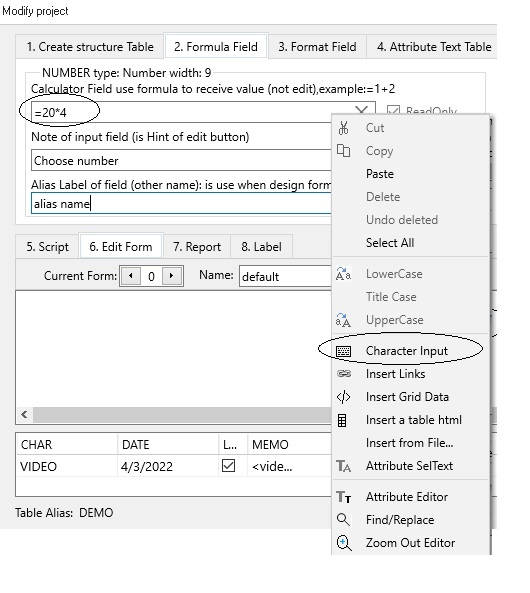
- This tab have 3 attributes for edit form:
- + Calculator field input: this field use formular to receive value (it can not edit).
Example:=alias.field1+alias.field2 is true
Example:=field1+field2 is wrong
+ Hint label input: this is note of input field or hint of label.
+ Alias field input: this is alias label of field (secord or other name), it use when design form input data.
To calculator formula field you can use calculator function:
=calculator(alias,fieldname) is true
=calculator(alias,alias.fieldname) is wrong
or
return formular of field:
=calculator(alias,fieldname,0)
* Note, Field number has formular, it value =0. Limited use this formula Field.
* Function SUM() will has value = 0
* Function REPLCAE() will not.
* Use function CALCULATE(Alias,Fieldname) for this formular field. Sample like: calculator('demo','number')
* Use can use Function REPLACE(Alias,Fieldname,Expresion Formular) to asigned for Formula field.
Click [Apply] to write. Clear to [cancel].
You can create format input box when edit or change data of table:
- For Character :
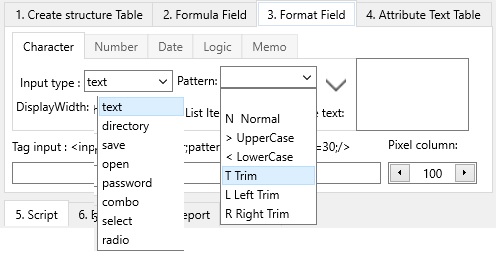
- + Input type: text, directory, save, open, password, combo box, select box,radio group.
Directory : Call directory dialog.
Save : Call save dialog.
Example you can input filter, like : Text file (*.txt)|*.txt|All files (*.*)|*.*
When dialog show, it filter only file with extension *.txt or *.*
When dialog show, it filter only file with extension *.cdf or *.*
Password : Specifies whether this edit control shows its characters or not.
Combo box: An edit box with a list of predefined choices, which can be edited at design time.
Example, field color (option):
Red
Blue
Green
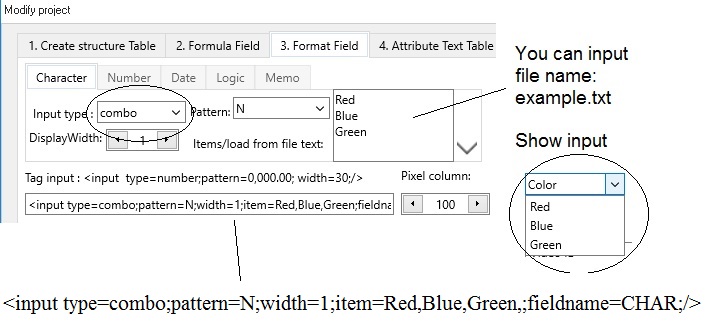
- If many Option (like: thousand option). You can't input manu option.
When you create a file text (example.txt) with many row in memo box. When call, it will load from file Example.txt into List Combo for you choose.
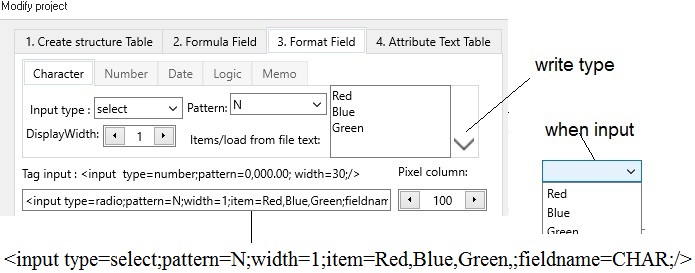
Select: is a button with a list box attached to it.
Click the button to display the list (no more). You can select an item from the list and it will appear as the button's text. You cannot type text directly into the combo box button.
Example, field color (option):
Red
Blue
Green
Radio: Represents a radio (option) button. Presents a set of mutually exclusive choices:
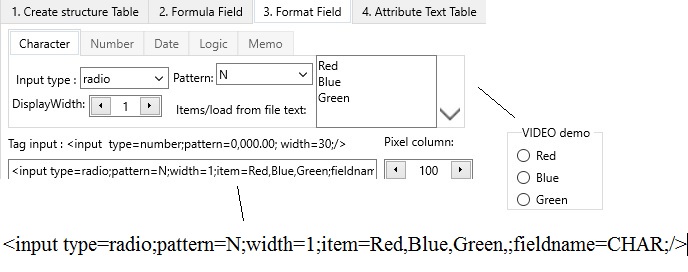
- + Pattern :
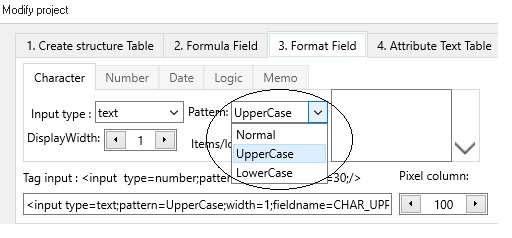
+ width, height
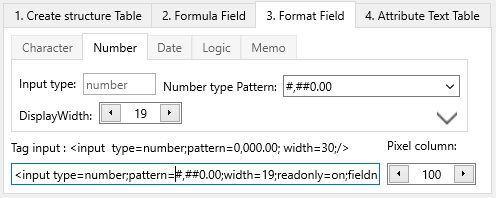
- For Number :
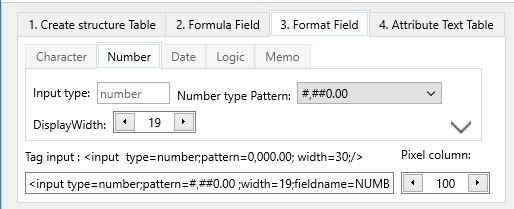
- + Input type: number.
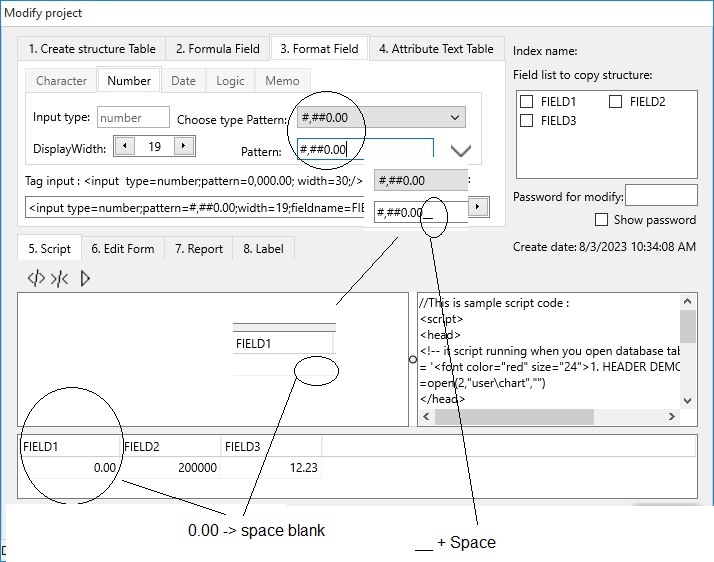
+ Pattern, select item from TextBox, it supported only in data grid.
In edit form record it by format system platform.
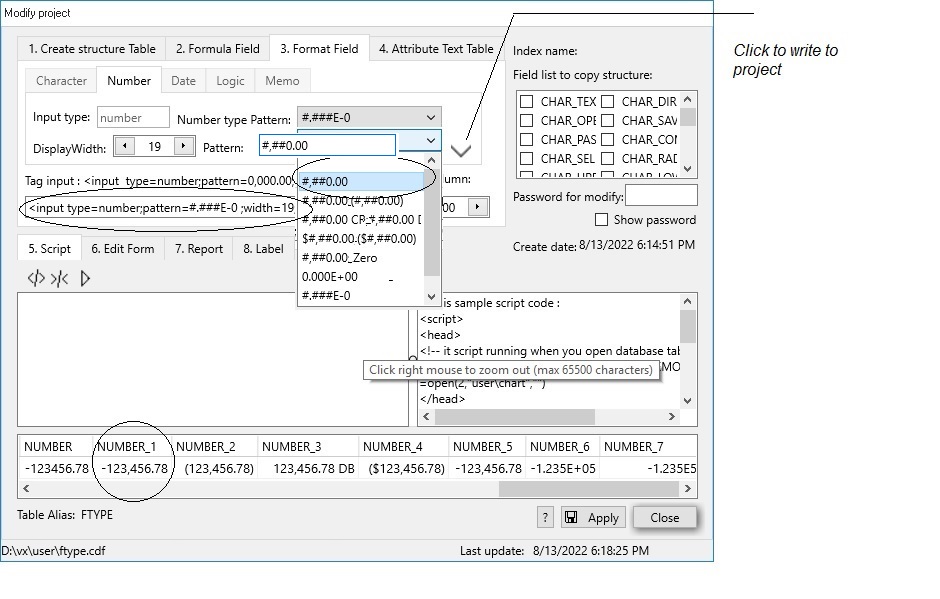
- #,##0.00
#,##0.00_(#,##0.00)
#,##0.00 CR_#,##0.00 DB
$#,##0.00_($#,##0.00)
#,##0.00__Zero
0.000E+00
#.###E-0
+ width : 2-19
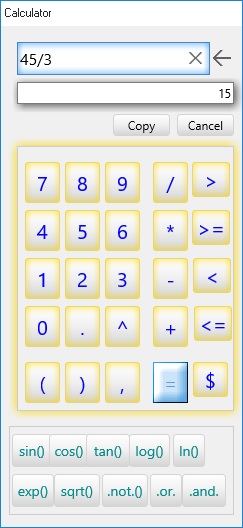
+ In edit number you can call calculator dialog to input fomular or calc expression (you click double or click right mouse).
If you need decimal to 0: #,##0
If you need zero as 0: #,##0
0 If you need zero as blank: #,##
If you need zero as minus: #,##-
-
If you need zero as zero: #,##zero
zero
In to 2 decimal:0.00
If you need zero as 0: #,##0.00
0.00 If you need zero as blank: #,##0.00__
If you need zero as minus: #,##0.00__-
-
If you need zero as zero: #,##0.00__zero
zero
- For Date :
- + Input type: date.
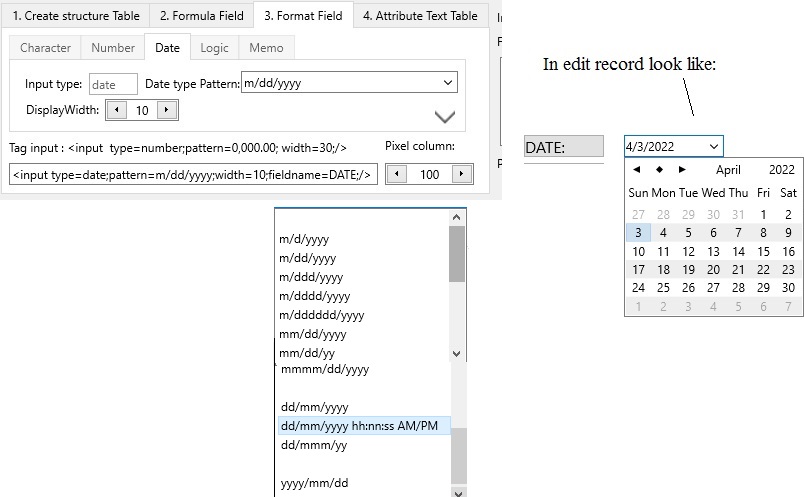
+ Pattern, select item from TextBox, it supported only in data grid. In edit form record it by format system platform. :
m/d/yyyy
m/dd/yyyy
m/ddd/yyyy
m/dddd/yyyy
m/dddddd/yyyy
mm/dd/yyyy
mm/dd/yy
mmm/dd/yyyy
mmmm/dd/yyyy
dd/mm/yyyy
dd/mm/yyyy hh:nn:ss AM/PM
dd/mmm/yy
yyyy/mm/dd
+ width : 10-32
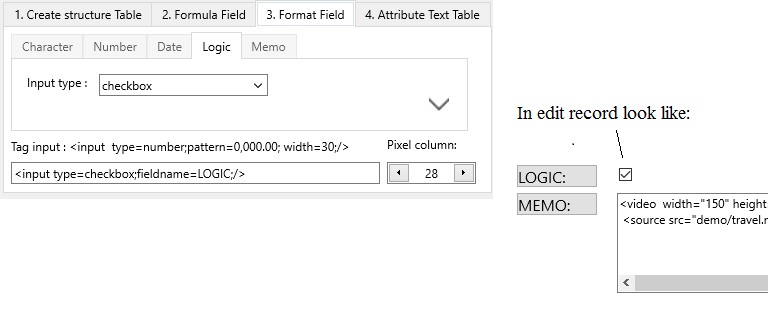
- For Logic.
- For Memo :
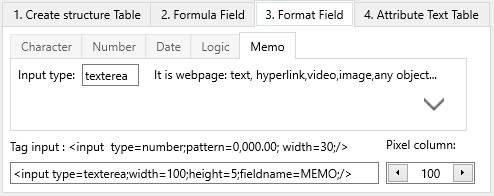
+ Input type: textarea.
+ width, height of textarea.
This field is html webpage: text, hyperlink, video, image, any object...
- Uses checkbox Readonly if you don't use change data. Click [Apply] to write.
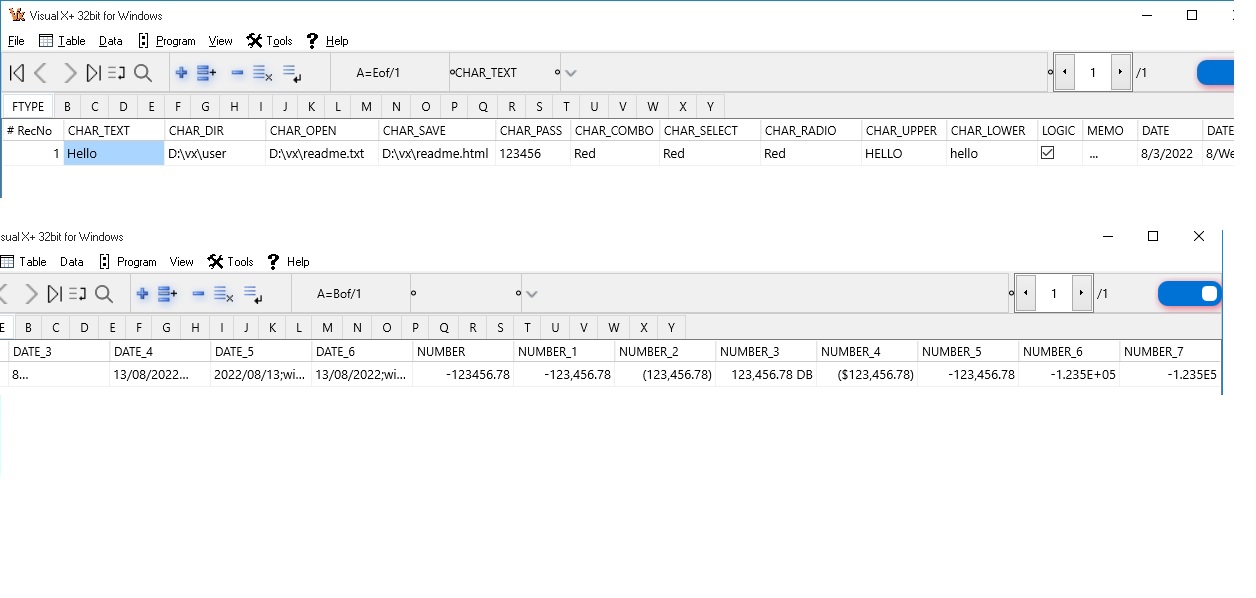
View data grid table with pattern :
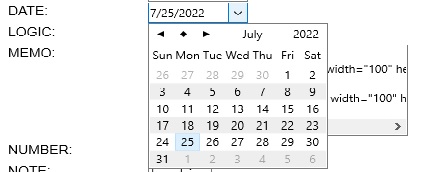
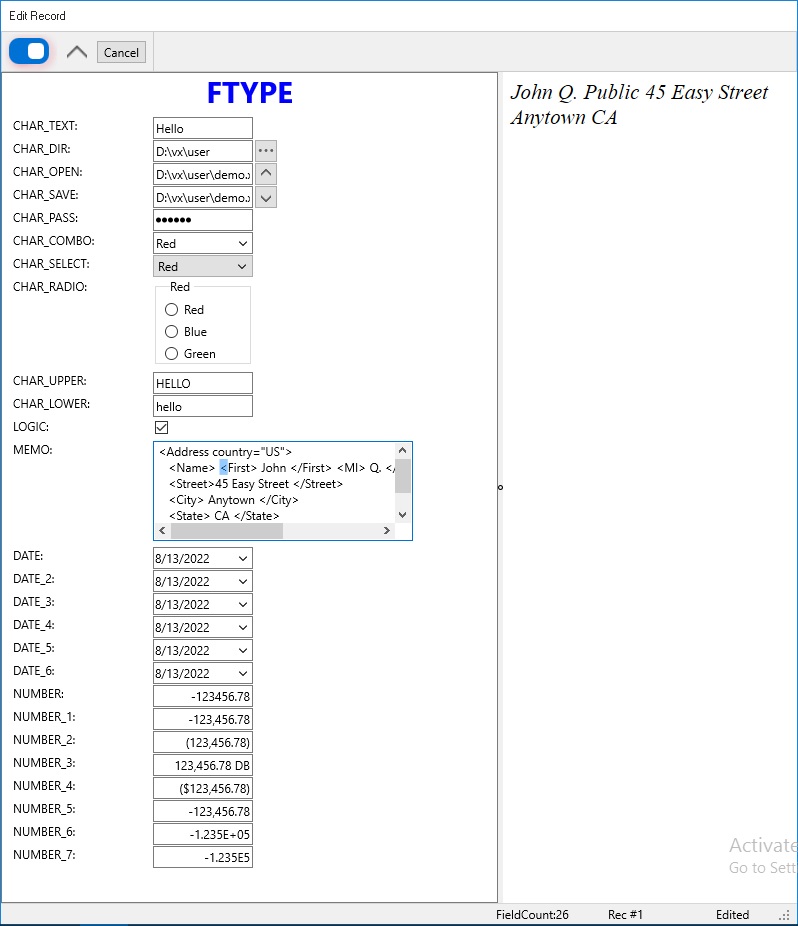
View data edit form :
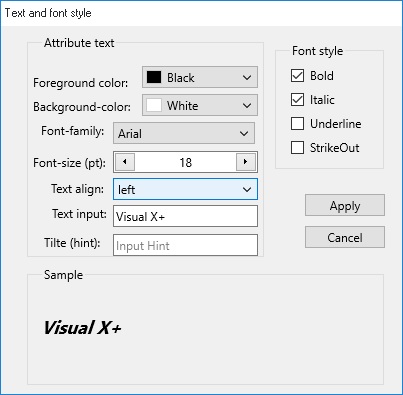
Click [F...] attribute font (color,size, style....) for show data grig table.
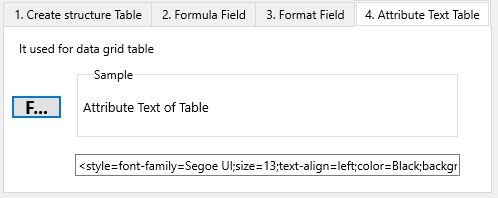
To set Font you click button [F...] to call Font Text Dialog.
Because VX used for internet, SCRIPT HTML code like STORE PROCUDURE in other database languages.
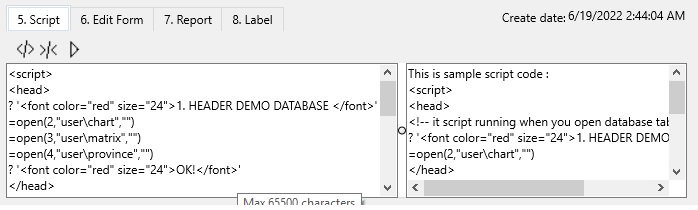
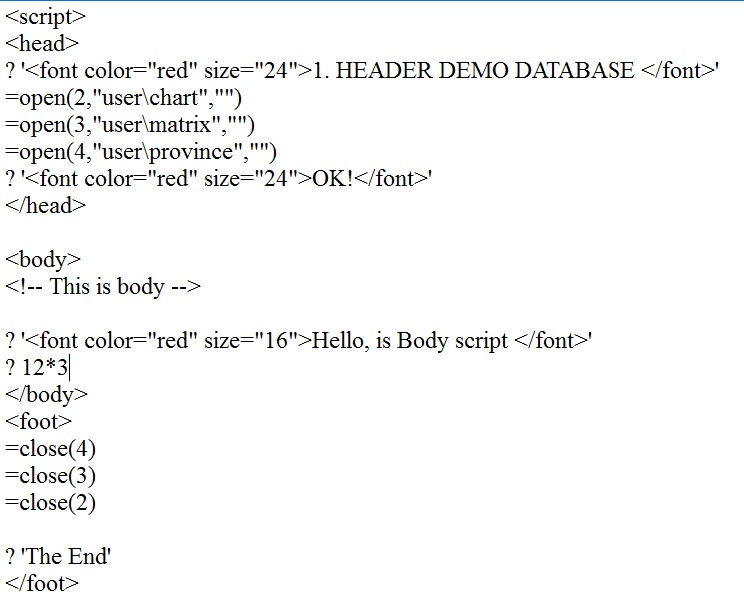
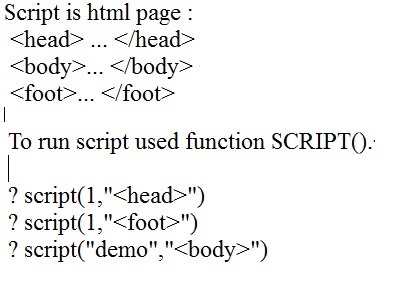
This is sample script code :
- <script>
<head>
<!-- it script running when you open database table. -->
? '<font color="red" size="24">1. HEADER DEMO DATABASE </font>'
=open(2,"user\chart","")
</head>
<body>
<!-- This is body -->
? '<font color="red" size="16"> Hello, is Body script </font>'
</body>
<foot>
<!-- It script running when you open database table. -->
=close(2)
</foot>
</script>
* Note, maxlenght script editor is 69982 character.
Call edit form dialog. In this dialog you can create edit form. See topic 7.3.1. Edit Form.
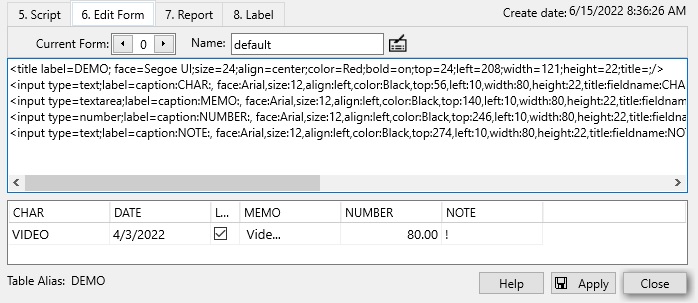
See Edit Form.
* Note, maxlenght screen form editor is 16000 character.
* Importal, if edit form is a webpage (html-/html), it only work in remote client.
* Importal, all declark varibles, div not same name in called webpage.
* Importal, declark css and script not suoort in this embed html code. It used css and script function from a webpage called embed html.
Call report form dialog. In this dialog you can create report form.
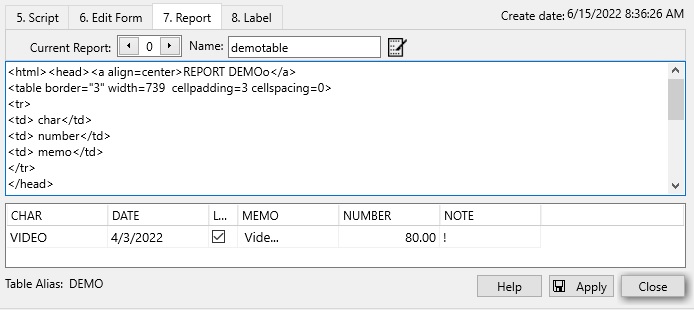
* Note, maxlenght report editor is 16000 character.
See Report Form.
Call label form dialog. In this dialog you can create label form.
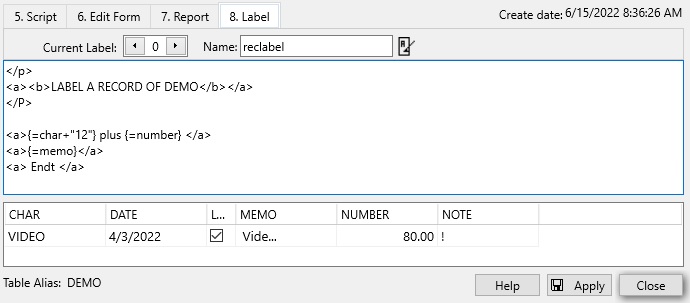
* Note, maxlenght label editor is 16000 character.
See Label Form .